1. Open the signed reference
The printed QR carries a signed reference. Opening the link sends it to the hosted portal, which resolves the issuing organisation and checks the signature.
Signed codes on documents and labels. Five verdicts, zero guesswork.
AurumIQ connects a signed document to a browser-based verification page. Buyers can check the result, compare the invoice details and reach the supplier’s supporting company documents.
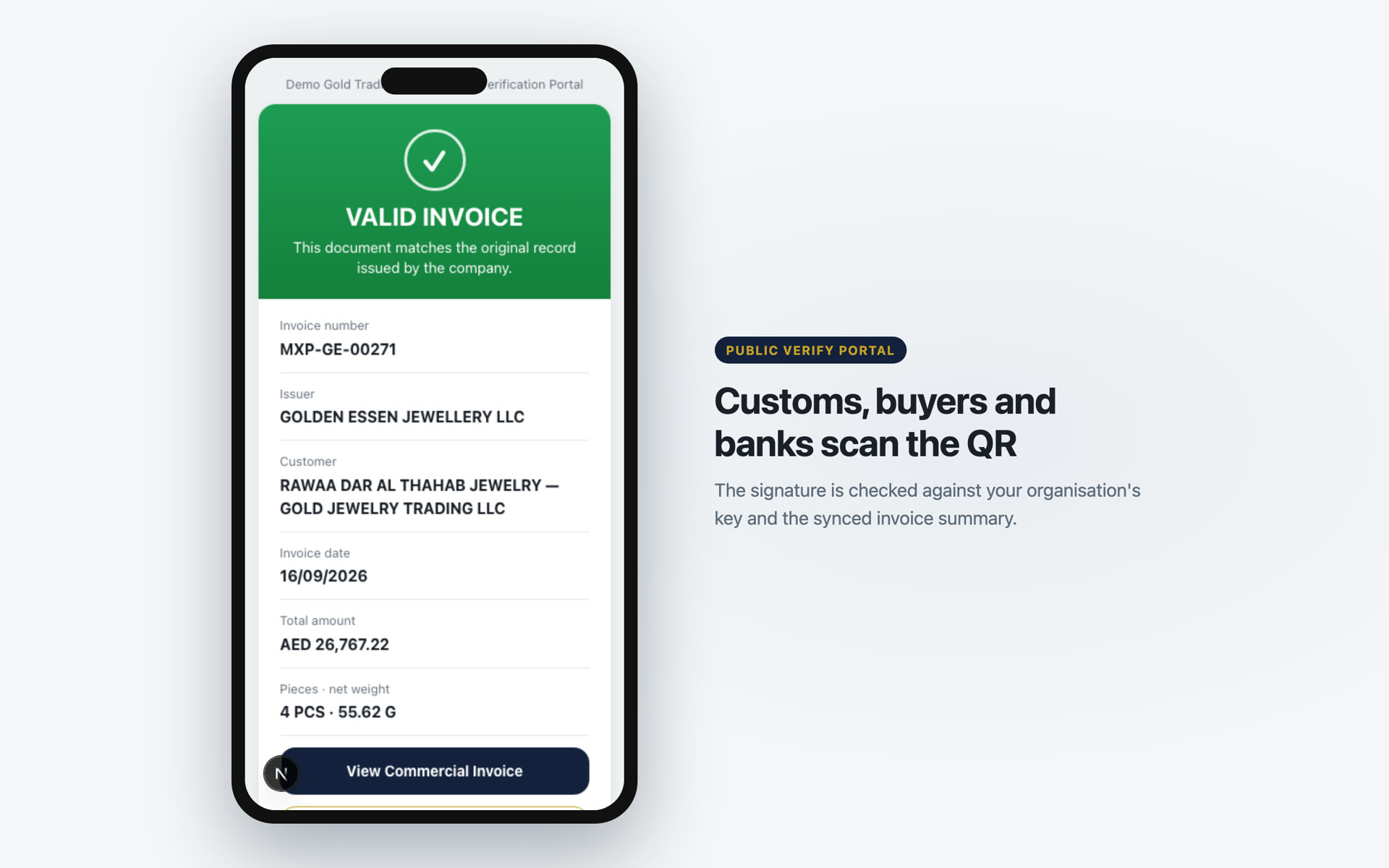
The printed QR carries a signed reference. Opening the link sends it to the hosted portal, which resolves the issuing organisation and checks the signature.
When the invoice has synced, the portal compares key details against the stored record and checks whether the issuer has voided it.
Read the result alongside the document. Where available, open the invoice, packing list and company KYC information from the verification journey.
| Result | What it means | Next step |
|---|---|---|
| VALID | The signature is valid. When a synced record is available, the portal also checks the stored invoice number, total and record integrity. | Compare the displayed details with the document you received and check whether the record has synced. |
| CANCELLED | The synced invoice record has been voided by the issuer. | Request the corrected invoice from the supplier. |
| TAMPERED | The signed code and stored record fail an integrity or consistency check. | Stop and ask the issuer to investigate the discrepancy. |
| INVALID_CODE | The signature cannot be verified with an available, non-revoked organisation key. | Ask the issuer for a valid document or code. |
| NOT_FOUND | The reference cannot be resolved, for example because its format or organisation is unrecognised. | Check the complete link or code and contact the issuer if it still cannot be found. |
The desktop workstation can issue and sign documents without an internet connection. The buyer needs internet access to open the hosted portal. Before the invoice record syncs, a valid signature can be shown as verified offline; the latest record details and void status become available after syncing.
Serialised piece labels use a separate verification flow, with GENUINE, INVALID LABEL or NOT FOUND results. This checks the signed label and available piece record. It does not assay the metal or independently establish the physical item’s purity.
A valid code confirms the signed reference. Compare the physical document with the displayed details: a genuine QR copied onto a different document does not make that document genuine.
The company KYC page gives recipients access to the issuer’s available supporting documents. The downloadable pack includes an index and expiry information, with a “KYC USE ONLY” watermark. The organisation manages which documents it provides.